
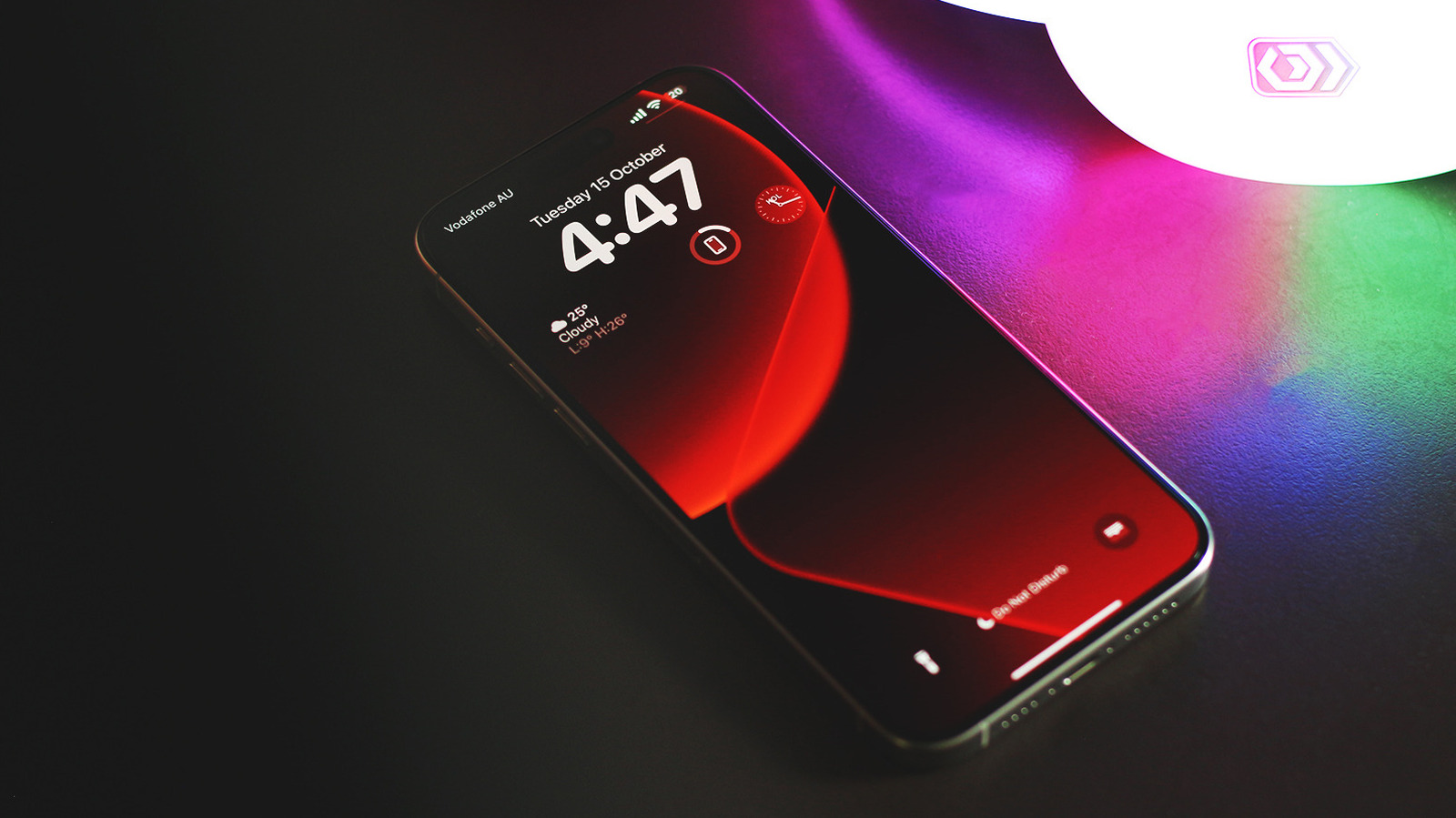
This article explores smart ways to customize your iPhone beyond basic wallpapers, focusing on underrated widgets that add real utility and personality to your home screen. You will learn which widget types offer the most practical benefits, how to mix built-in and third-party options, and simple organizing strategies to keep your setup clean and fast. Expect tips that balance style with function so your phone looks sharp and actually helps you get things done.
Widgets are more than pretty boxes; they are live shortcuts that surface what matters without extra taps. Think of them as tiny, context-aware apps that sit on your home screen and update in real time. Choosing the right ones can turn cluttered pages into focused tools that match how you work and live.
Start with utility widgets that cover everyday needs like calendar, battery status, and weather. The built-in options are solid, but some third-party widgets show multiple time zones, hour-by-hour weather, or battery drain across connected devices. These choices keep essential info visible and cut down on hunting through apps.
If productivity is the target, add widgets that link directly into actions you use most often, such as starting a timer, opening a note, or launching a playlist. Shortcuts-compatible widgets can trigger multi-step workflows with one tap, saving time and reducing friction. A small set of action widgets often replaces dozens of repetitive gestures.
For privacy and minimalism, consider widgets that reveal high-level info without exposing details. A glanceable notes widget can show a summary line rather than full text, and calendar widgets can list only free or busy slots without event names. This approach keeps your home screen tidy and respects privacy when others glance over your shoulder.
Visual cohesion matters, so pick widgets that share color palettes and shapes to avoid a messy collage. Many apps offer light and dark theme options or allow you to pick accent colors when creating widgets. Using consistent sizing and spacing keeps the layout pleasing while still giving priority to the most important elements.
Smart Stacks and widget rotation are underrated for people who want variety without chaos. Stack widgets of the same size and swipe through them or let iOS rotate them intelligently based on usage. This saves space and keeps the home screen dynamic without manually swapping widgets all the time.
Explore productivity-focused third-party widgets that combine multiple data points into one glance, like email previews paired with calendar highlights, or a habit tracker with streak counts and motivational messages. These composite widgets reduce the need to open several apps and help you maintain momentum during a busy day. Choose ones that refresh quickly and avoid heavy battery use.
Don’t forget glanceable launchers that open files, contacts, or frequently used settings directly from the home screen. These tiny launchers are perfect for one-touch access to people or documents you use every day. They work well alongside a focused set of core widgets rather than competing with them for attention.
Home screen widgets can also improve accessibility by making actions larger and more predictable for quick tapping. Larger widgets for music controls, voice memos, and timers are particularly useful when you need to operate your phone with one hand. Tailoring widget size to your typical grip makes the phone feel custom-built for your routine.
Battery life and background refresh are real concerns when piling on widgets, so choose options that balance immediate value with low update frequency. Widgets that refresh only when tapped or on a sensible schedule will preserve battery while still keeping information fresh enough to be useful. Test a few combos and monitor battery impact for a few days.
Finally, treat the home screen like a living space that should evolve as your needs change. Swap widgets seasonally, when priorities shift, or to match new workflows. With a few well-chosen widgets, your iPhone can become a faster, smarter, and more personal tool without losing the clean look you want.
