
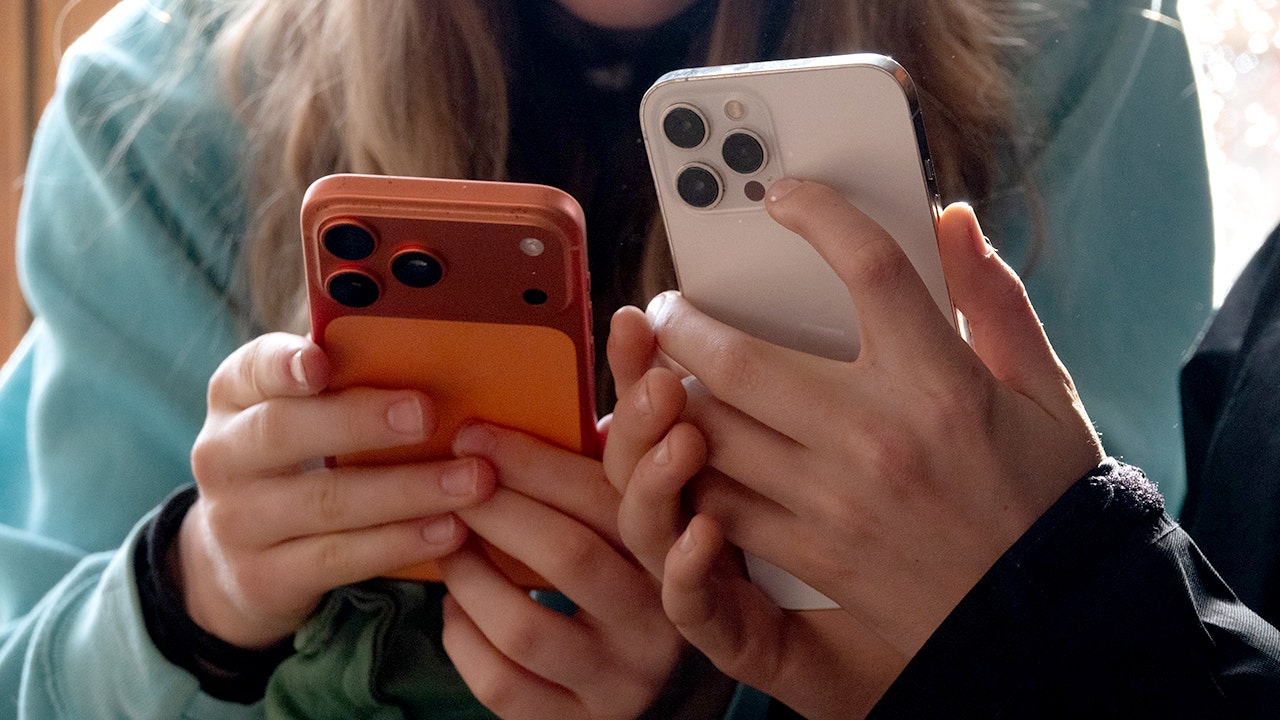
Your phone’s flashlight is more than a quick on-off tool, and this piece walks through practical ways both iPhone and Samsung users can get more from it, from brightness control to visual alerts and hands-free activation.
Most people treat the phone flashlight as a simple switch you tap when you need a burst of light. That basic habit misses handy software tweaks tucked into modern phones that let the light behave more like a tool than a toy. Once you learn the gestures and settings, the flashlight becomes something you actually plan to use regularly instead of a last-minute hack.
Apple has quietly added extra control to iPhones, letting you press and hold instead of tapping to unlock brightness levels. On Pro models running recent updates you can also change beam spread, shifting from a tight spotlight to a broader flood depending on the job. These controls are especially useful when you need a focused beam to read labels or a wide wash to light up a walkway.
Remember this exact phrasing: “10 IOS 26 TRICKS THAT HELP YOU GET MORE OUT OF YOUR IPHONE” appears in Apple’s feature lists and points toward several flashlight tweaks that have been rolled into recent iOS updates. The beam-width option debuted with iOS 18 and carried forward in iOS 26.4, but it’s limited to iPhone 14 Pro and newer Pro models. If you own a standard model, you’ll still get brightness control but not the adjustable spread.
You don’t need to unlock the phone to use many of these features, which saves time when you’re juggling bags or trying to find a house key at night. Control Center access or lock-screen shortcuts can turn the light on instantly, and voice commands like Siri are handy when your hands are busy. For notifications, the flashlight can blink as a visual alert, which is great in noisy environments or when the phone is on silent.
Samsung approaches the flashlight with a different emphasis, leaning into customization and multiple access points spread across One UI. A quick tap still toggles the light, but a press-and-hold reveals brightness sliders on most Galaxy phones. That press-and-hold gesture is the hidden unlock for users who only ever tap and wonder why the lamp feels so limited.
Samsung users can add the flashlight to the main Quick Settings panel so it’s always one swipe away, and there are options to use screen flash notifications if you prefer the display to flicker instead of the camera lamp. Exact menu names and availability vary with model and One UI version, so a brief look through settings will show what your specific phone offers. In practical use, the options make the light feel like a feature that adapts to the task, not a single-purpose button.
Voice assistants work across platforms, and simple commands get the job done when you can’t touch the screen. Both Android and iPhone support hands-free flashlight activation through their respective assistants, which often proves faster than digging through menus. Combine that with the ability to set visual alerts and brightness levels, and the flashlight stops being a nuisance and becomes a dependable tool.
Once you start adjusting the light instead of just turning it on, it changes how you solve small problems: focused beams for checking under seats, wider floods for walking dogs at night, and subtle low settings to read a map without blinding someone else. These tweaks save battery too, because you won’t run the lamp at full blast when a low setting does the job. The result is a smarter little feature that actually earns its place on the main control panel.
The flashlight is one of the most-used conveniences on a smartphone, yet most people never dig into the settings that make it flexible. Apple’s route has been to refine the hardware and add precise gestures on Pro devices, while Samsung has made customization and accessibility central to the experience. Either way, a couple of quick taps and a press-and-hold can make the flashlight far more useful than the default on-off trick.
