
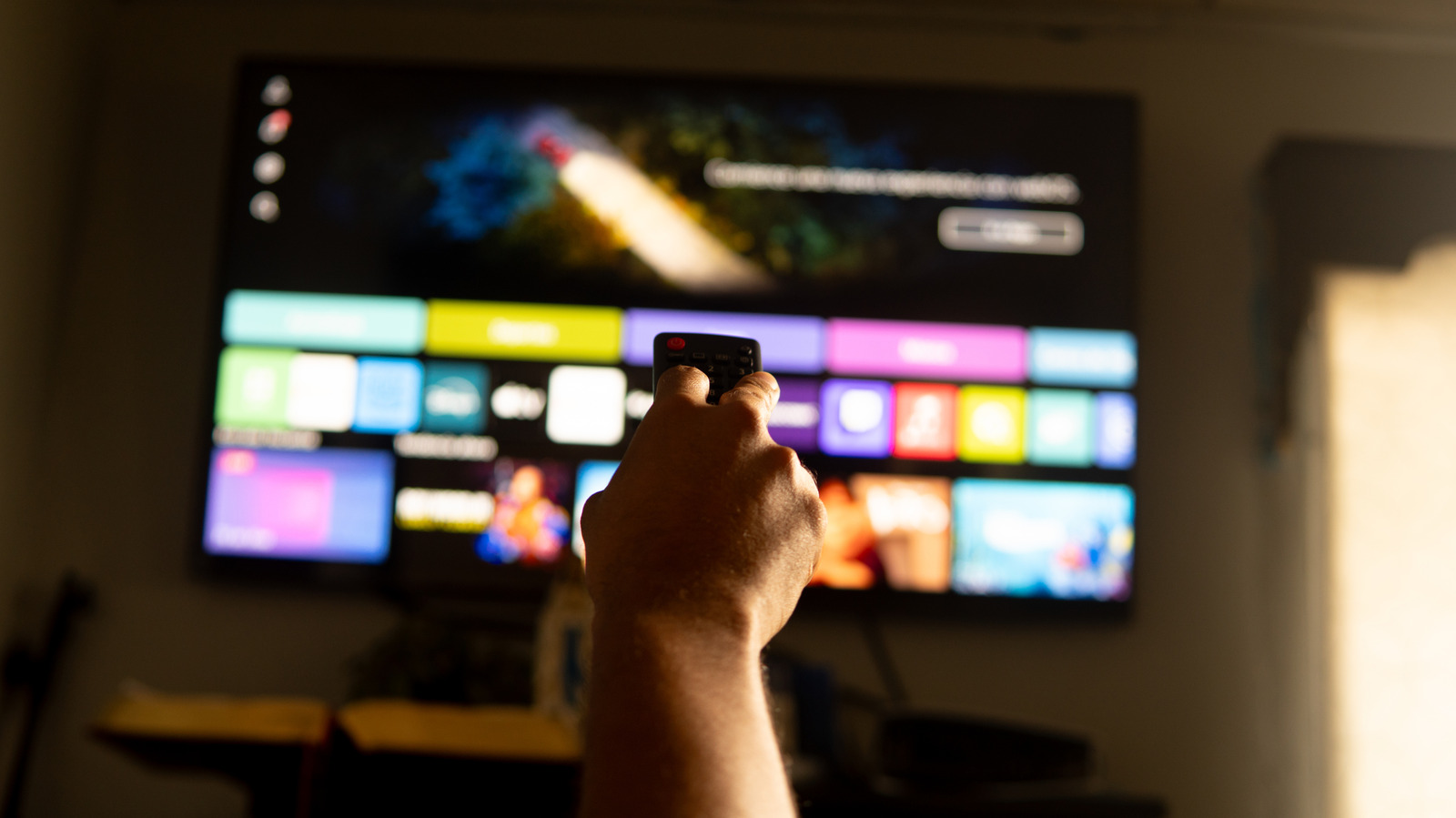
Smart TVs feel like instant entertainment, but they quietly collect data, demand software attention, and depend on your home network to behave. This piece walks through the practical choices you face when unboxing a smart TV so you can dodge annoying slowdowns, surprise privacy grabs, and app chaos. No fluff, just what to check and how to make the set actually work for you.
Most people assume a smart TV is plug-and-play, then get surprised when services want sign-ins, permissions, and location access. During the first setup you’ll be asked to connect to Wi-Fi, accept terms, and often to log in to an account tied to the TV brand. Treat that moment as a decision point rather than a formality; the choices you make now affect speed, privacy, and how often you see targeted ads.
Streaming apps are the reason most of us buy a smart TV, but not every app behaves the same across platforms and regions. Take time to browse the TV’s app store, prioritize the services you already subscribe to, and remove apps you won’t use to limit background activity. If a must-have app isn’t available, consider casting from another device or using a streaming stick instead of forcing an ecosystem you don’t like.
Network connection is more than just “connected” or “not connected.” If you stream 4K content, Wi-Fi can be fine with a modern router placed centrally, but wired Ethernet offers the most consistent performance for big files and live events. Pay attention to your internet speed and the number of devices active during peak hours, because buffering is usually a network issue, not the TV itself.
Software updates keep features current and patch security holes, yet they can also change settings or add unwanted services. Enable automatic updates if you want convenience, but check the update notes after each install so you know what changed. If an update causes problems, most TVs let you roll back or perform a factory reset; keep that option in mind before you rearrange everything.
Privacy settings on smart TVs are easy to miss and often buried under multiple menus that ask for permissions in plain sight. Look for options to disable voice assistants, turn off personalized ad tracking, and prevent the TV from sending viewing history to the manufacturer. If the set includes a camera or microphone, physically cover or disable them when you’re not using those features to reduce the risk of unintended listening or recording.
Account links and profiles make sharing easier but also spread data across services, so be cautious about linking every account during setup. Create separate profiles for kids with parental controls active, and avoid using the same password across devices or apps tied to the TV. If you use a streaming hub or universal login, enable two-factor authentication where possible to add a simple layer of protection.
Routine maintenance keeps a smart TV performing well without drama: uninstall apps you never use, clear caches if the interface starts lagging, and reboot the TV occasionally to free memory. Avoid stacking too many background apps or auto-launching services that chew bandwidth while you’re watching a live stream. If storage is limited, consider offloading apps to a connected device rather than cluttering the TV’s internal memory.
Security for smart TVs is often overlooked even though they sit on the same network as your laptop and phone. Use strong unique passwords, put IoT devices on a separate guest network when possible, and check for firmware updates from the manufacturer regularly. Treat the TV like any other internet device: if it’s running software and stores accounts, it needs basic defenses.
Troubleshooting is mostly process, not panic: restart the TV and router, check for an update, and then remove or reinstall the problematic app if issues persist. If streaming stutters, test speed with another device and try wired Ethernet or moving the router closer before blaming the app. When all else fails, note the exact error messages, take screenshots if necessary, and contact support with those details for faster help.
Buying a smart TV shouldn’t feel like signing away control, and a few minutes of setup and periodic checks can keep it fast and less intrusive. Treat setup as configuration, not surrender, and you’ll have a screen that serves your content without surprising you with data grabs or slowdowns.
