
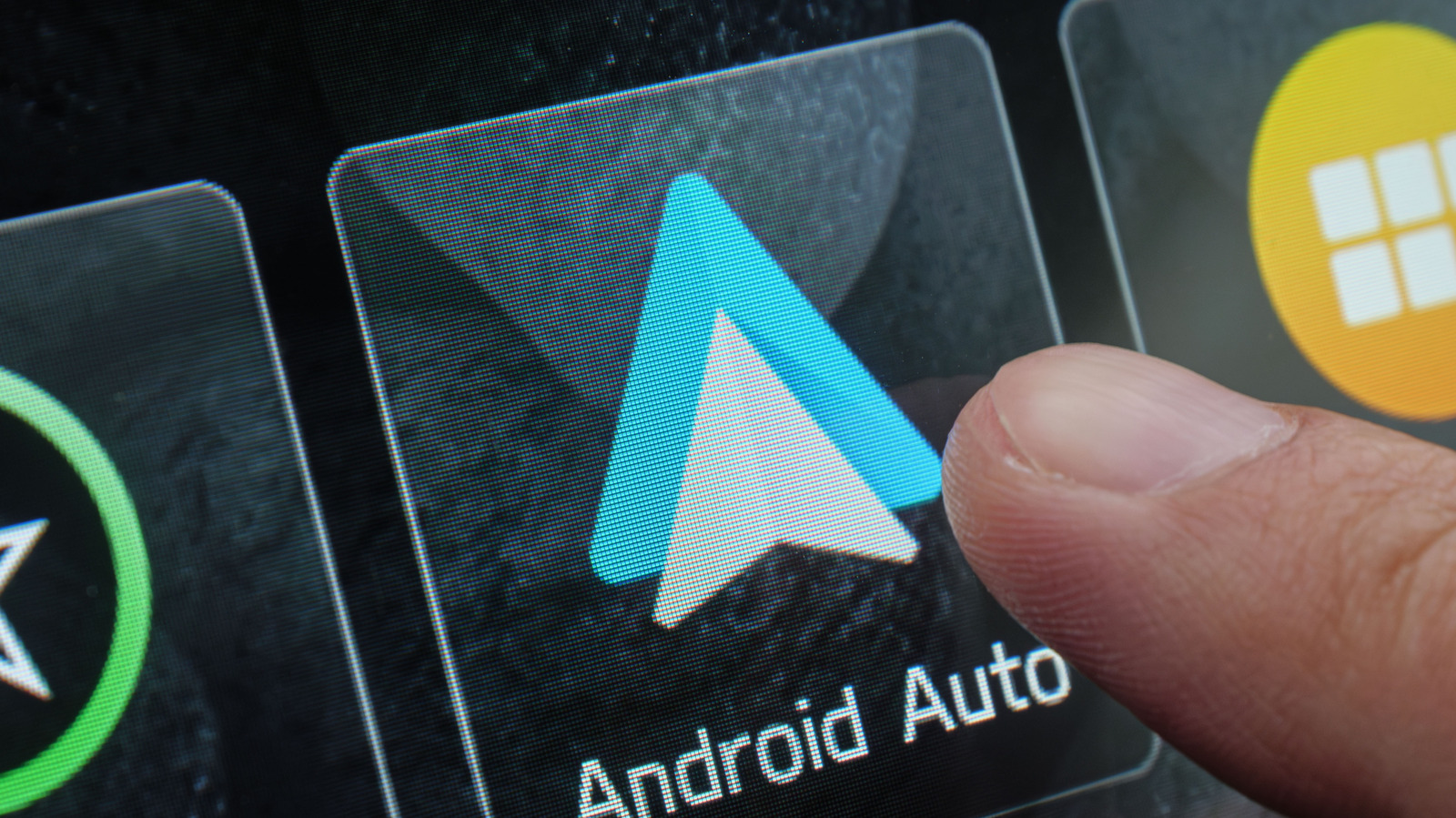
This article walks through why plugging your phone into the car with a USB cable can trip up Android Auto, what typically goes wrong, and practical fixes you can try right away to get a stable connection without fuss.
Many people assume every USB cable will do the job, and that is not true. Android Auto needs a cable that supports data transfer, not just charging, and some modern phones are pickier than others. Cheap or worn wires often pass power but fail to transmit the signals Android Auto depends on.
Connector type matters because phones and cars have evolved at different speeds. USB-C is common on newer phones and supports faster data standards, while older micro USB or even different implementations on cars can introduce compatibility gaps. If the cable is physically loose or the connector is poorly aligned you will see intermittent drops or nothing at all.
Cable quality is a silent culprit you rarely notice until it is too late. Many cables out there are built to charge devices and omit the wiring for data lanes, which is fine for topping up battery but useless for linking screen and controls. Also, some cables carry data but are designed for USB 2.0 speeds, and those can behave inconsistently depending on the phone and the car’s head unit.
Length and shielding make a difference you can often feel in performance. Longer cables can degrade signal integrity and allow electromagnetic interference to creep in, so keep the cord short when possible. Look for cables with good shielding and sturdy connectors; those little design choices reduce the chance of dropped connections when you hit a bumpy road.
Phone and car software also plays a part in whether Android Auto will behave. Firmware mismatches and outdated head units have been known to cause pairing headaches, and sometimes the fix is as simple as updating the phone or the vehicle’s infotainment system. If updates are current but trouble persists, toggling USB preferences on the phone or enabling developer options for USB debugging can reveal whether the phone is treating the connection as data or charge only.
Practical troubleshooting usually starts with swapping the cable and the port. Try the original cable that came with your phone, or a branded cable from a reputable manufacturer that explicitly mentions data transfer support. If one port on the car works and another does not, that points to the vehicle end, and if no port works the issue likely lives with the cable or the phone settings.
Adapters and multiport hubs complicate things and are often troublemakers. Passive USB-C to USB-A adapters can fail to map signals correctly, and hubs that mix power delivery with data often confuse the handshake process Android Auto needs. If you must use an adapter, pick one designed specifically for data transfer and test it before relying on it for every drive.
When nothing else solves the problem, consider simple maintenance and replacement. Inspect cable ends for fraying, clean the ports gently with compressed air or a soft brush, and ditch any cable that feels loose or flimsy. Buying a reliable, well-made cable that supports full data lanes and is short enough to avoid signal loss is often the quickest path back to a consistent Android Auto experience.
