
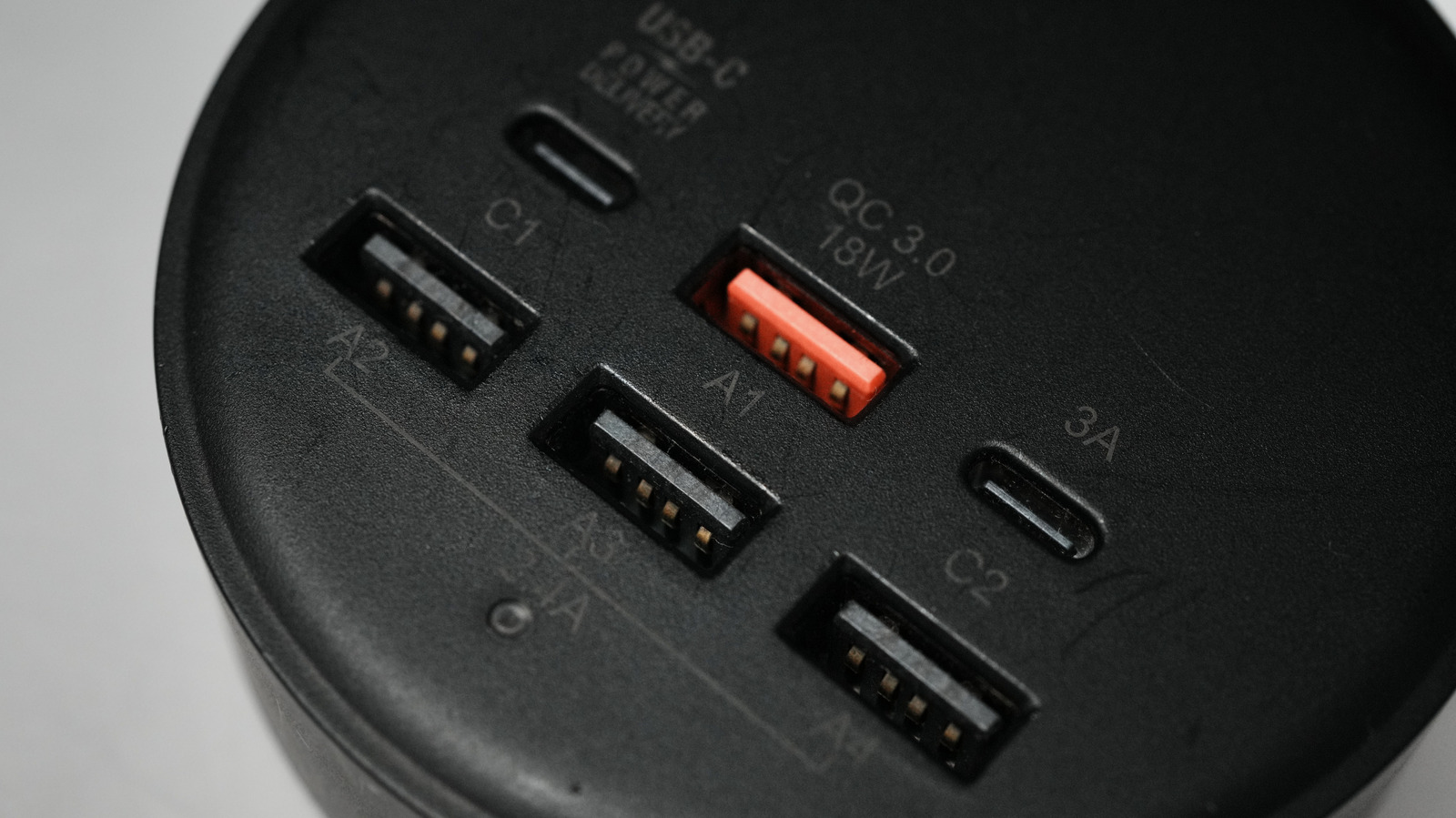
You probably noticed blue, red, and black USB-A ports and wondered what the fuss is. Those colors are shorthand for different speeds, power abilities, or vendor choices, while USB-C keeps a uniform look that hides a lot of technical variety. This piece peels back the paint and explains why color can help but never tells the whole story.
Historically, color coding on USB-A gave quick clues: black for older USB 2.0 ports, blue for SuperSpeed USB 3.0 or 3.1, and red or yellow for special charging or always-on power. Those colors emerged because manufacturers wanted an easy visual to separate slow data ports from faster ones or to flag a port that supplies power when the machine is asleep. It worked well enough when USB-A designs were limited to a few clear standards.
But color is not a guaranteed standard across every vendor and model. Some brands use red to mark a charging-only port, others use it for high-current USB 3.x charging, and a few pick colors purely for brand identity. That inconsistency means color is at best a starting point; you still need device documentation or port icons to know what a port actually does.
USB-C changed the game by standardizing the connector shape but not the capabilities underneath. A USB-C jack could be a simple USB 2.0 data and charge port, or it could support USB 3.2, USB4, Thunderbolt, DisplayPort alternate mode, and Power Delivery at high wattage. Because the plug looks the same no matter what it supports, manufacturers rely on labels, symbols, or the product spec sheet to communicate real capabilities.
Speed differences are part of the confusion. USB 2.0 tops out at 480 Mbps, USB 3.0 (often blue) runs 5 Gbps, and later generations push to 10, 20, or far beyond with USB4 and Thunderbolt. If you plug a USB 3.x external drive into a black USB 2.0 port you’ll notice the slowdown instantly, and nothing about the shape will warn you if you only have a plain USB-C jack on a laptop.
Power delivery complicates things even more. USB-A had limited power by design, with some vendor extensions enabling faster charging. USB-C introduced Power Delivery, which negotiates voltage and current up to tens of watts, enabling laptops to charge over the same cable you use for data. So a red USB-A charging port and a USB-C port can both fill your phone’s battery, but one might charge faster and the other might actually run your laptop.
Icons and labels matter more than color now. Look for SuperSpeed markings like SS, the battery or lightning symbol for charging, the DP icon for DisplayPort alternate mode, or the Thunderbolt symbol where applicable. When those cues are absent, consult the manual or the manufacturer’s specs; a single USB-C port can have several capabilities and often won’t advertise them with color the way old USB-A ports did.
Practical rules: match cables to the job, use labeled ports for high-speed peripherals, and avoid assuming identical appearance means identical function. For heavy-duty needs like external NVMe drives or monitors, use cables and ports explicitly rated for the required protocol and bandwidth. For charging, prefer ports with explicit power-delivery support or marked high-current labels rather than relying on color cues.
