
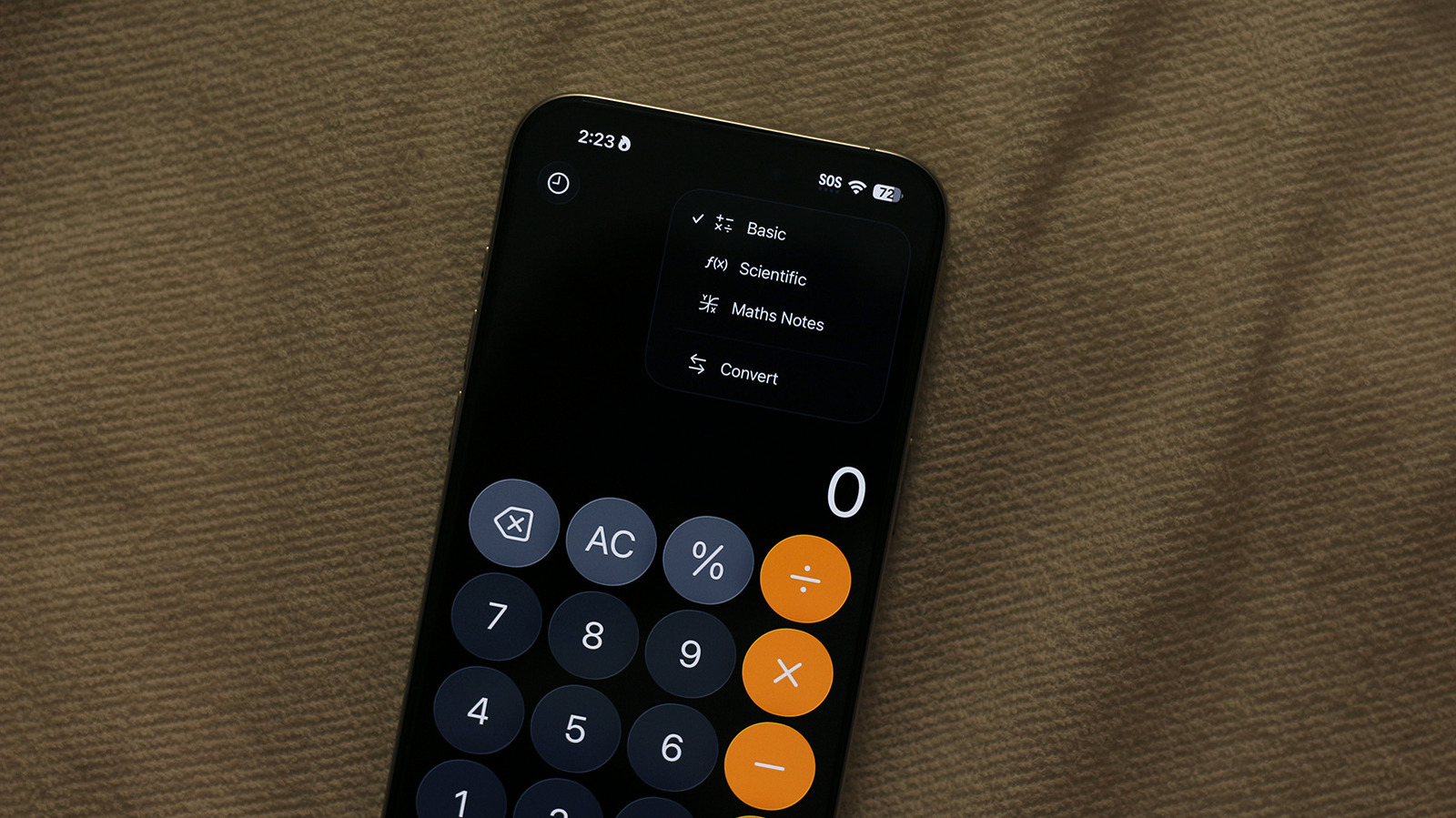
Your iPhone calculator hides a few simple tricks that make everyday math faster and less annoying. Read on for practical shortcuts, how to recover from mistakes, and ways to get advanced functions without hunting through menus.
The fastest fix when you fat-finger a digit is a swipe, not a panic. Swipe left or right across the number display to delete the last digit instead of starting over, which saves time on long entries and prevents silly retyping mistakes.
Flip your phone sideways to unlock a scientific toolset that most people never use. Landscape mode reveals parentheses, exponents, trig functions, and more, so you can handle anything from quick unit conversions to more serious arithmetic without a separate app.
If you need to reuse a result elsewhere, don’t bother memorizing it by hand. Long press the displayed answer and pick Copy to paste it into notes, messages, or a spreadsheet; you can also paste a number into the calculator if you’ve copied something from another app.
Want to repeat the same operation quickly? Use the equals button like a shortcut. After calculating something like 5 + 3 = 8, tapping equals again adds 3 another time, so repeated presses apply the last operation over and over, perfect for quick cumulative totals.
Spotlight and Siri are secret allies when you want math without opening apps. Swipe down on the home screen and type or speak an expression into Spotlight for an instant answer, or ask Siri out loud for hands-free calculations when your hands are busy.
Keep the Control Center handy for one-tap access to the calculator so you don’t shuffle through folders. Adding it to Control Center gives you a predictable place to tap when you need a quick sum while walking, in a store, or during a meeting and you want to stay efficient.
If you often do the same style of calculation, consider a tiny workflow change that pays off. Combine pasted numbers with landscape functions or use repeated-equals for running totals, and you’ll shave seconds off tasks that used to feel like busywork rather than problem solving.
Finally, remember the app is built for speed, not complexity, so keep expectations realistic and use the right tool for the job. For long sequences, spreadsheets or a dedicated calculator app might be better, but for daily math the iPhone calculator is a reliable, underused helper that’s worth learning a few tricks for.
