
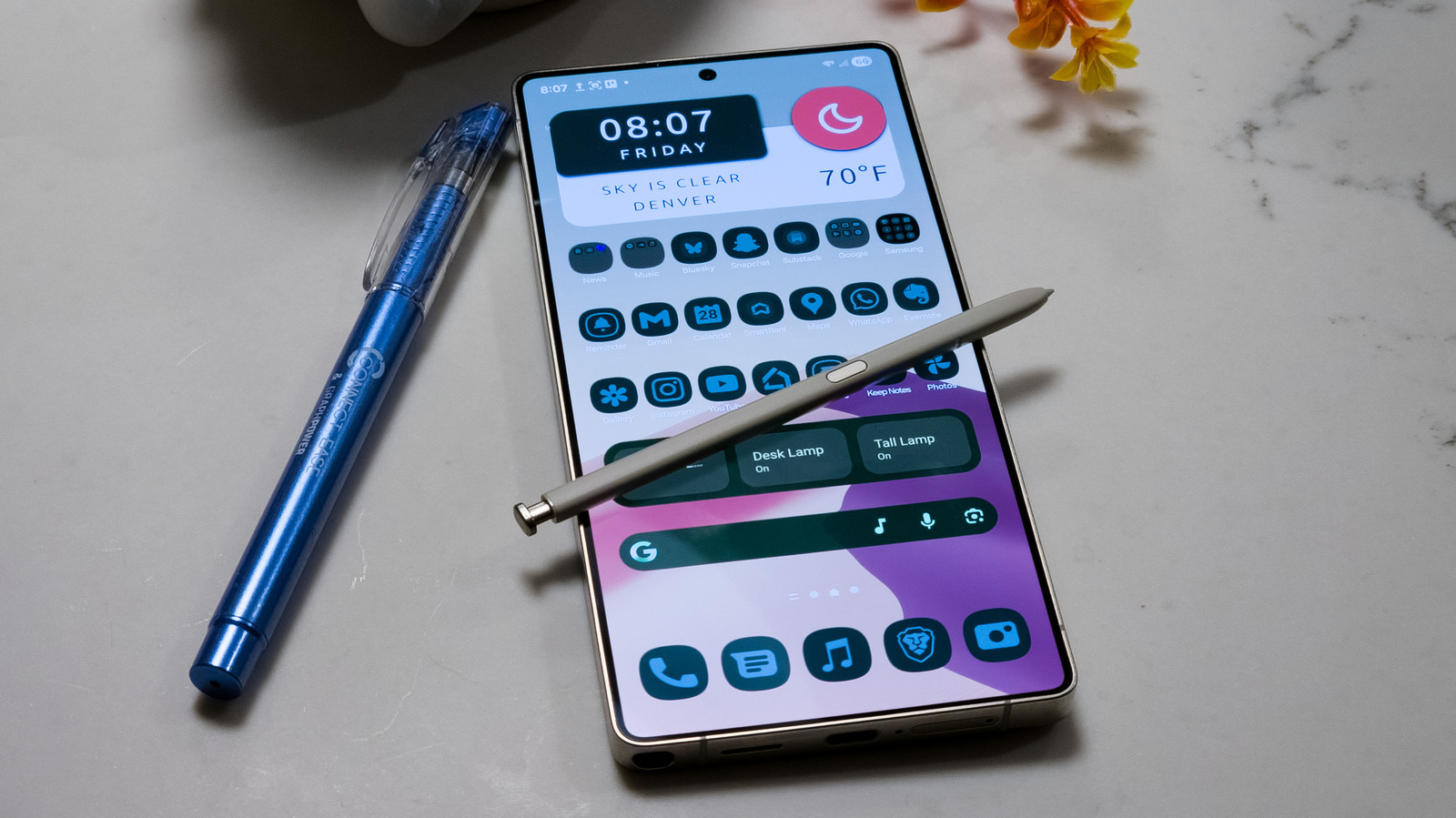
Quick guide: this piece shows how to take back control of your Samsung Galaxy home screen using One UI settings, Samsung tools, third-party launchers, widgets, and simple performance tips so your phone looks and behaves the way you want.
Most people tap an app and call it a day, but One UI quietly packs a lot of customization. You can change grid sizes, hide apps from the home screen, and tweak the app drawer with just a few taps. Those tiny tweaks make your phone feel like it was made for you instead of the other way around.
Start with the built-in Home Screen settings to see how far you can push the layout. Change the grid to cram more icons onto a page or spread things out for a cleaner look. Toggling the app drawer behavior and locking the home screen layout prevents accidental rearrangement and keeps your setup steady.
Bixby Routines and the native automation options are surprisingly powerful for home screen behavior. You can trigger profile changes when you get home, plug in your charger, or open a specific app. Those automatic swaps can flip wallpapers, swap widget sets, and surface the tools you need without fiddling.
If you want deeper control, Samsung’s add-on modules and third-party launchers expand possibilities. Home-focused modules let you resize and reposition widgets with wild precision, while launchers offer icon packs, gesture shortcuts, and custom app drawer filters. Pick a launcher that supports familiar gestures so your muscle memory transfers across devices.
Widgets are where your home screen earns its keep, but they can also be the biggest performance drain if misused. Use smart stacking and minimal widget designs to get info at a glance without bloating memory use. Swap heavy widgets for simpler alternatives or link to folders so you get functionality without constant background updates.
Icons, themes, and folders give visual polish and practical order at the same time. Tweak icon sizes, apply a consistent pack for a unified look, and nest less-used apps inside folders to cut clutter. Hiding seldom-used apps keeps the drawer tidy and makes the home pages breathe again.
Split-screen app pairs and edge panels are low-effort wins for multitasking and quick access. Set up app pairs for your most common two-app combos and pull up edge panels for shortcuts, contacts, or tools without leaving the current screen. Those small workflow hacks shave minutes off repetitive tasks every day.
Keep performance smooth by trimming background refresh and limiting animated widgets. A cleaner home screen also means fewer surprises when you load a heavy app or reboot. Back up your layout to your Samsung account or export launcher settings so you can restore a setup that actually works for you.
Want something adventurous? Experiment with gestures to launch specific apps or actions and assign a double-tap or swipe to something useful. Try one change at a time and live with it for a day before switching again; you’ll notice which tweaks genuinely improve your daily flow and which are just flashy distractions.
