
- Why DisplayPort matters for modern monitor setups
- Common hardware problems that can break the signal
- Cable, port, and adapter issues worth checking first
- Software settings that can keep a monitor from being detected
- Driver updates, rollbacks, and when support may be needed
DisplayPort can be the difference between a clean, sharp setup and a screen that refuses to cooperate. It shows up everywhere from gaming rigs to creative workstations, where high refresh rates, crisp motion, and reliable connections matter a lot. When the signal drops, the frustration usually comes down to a few familiar culprits hiding in plain sight.
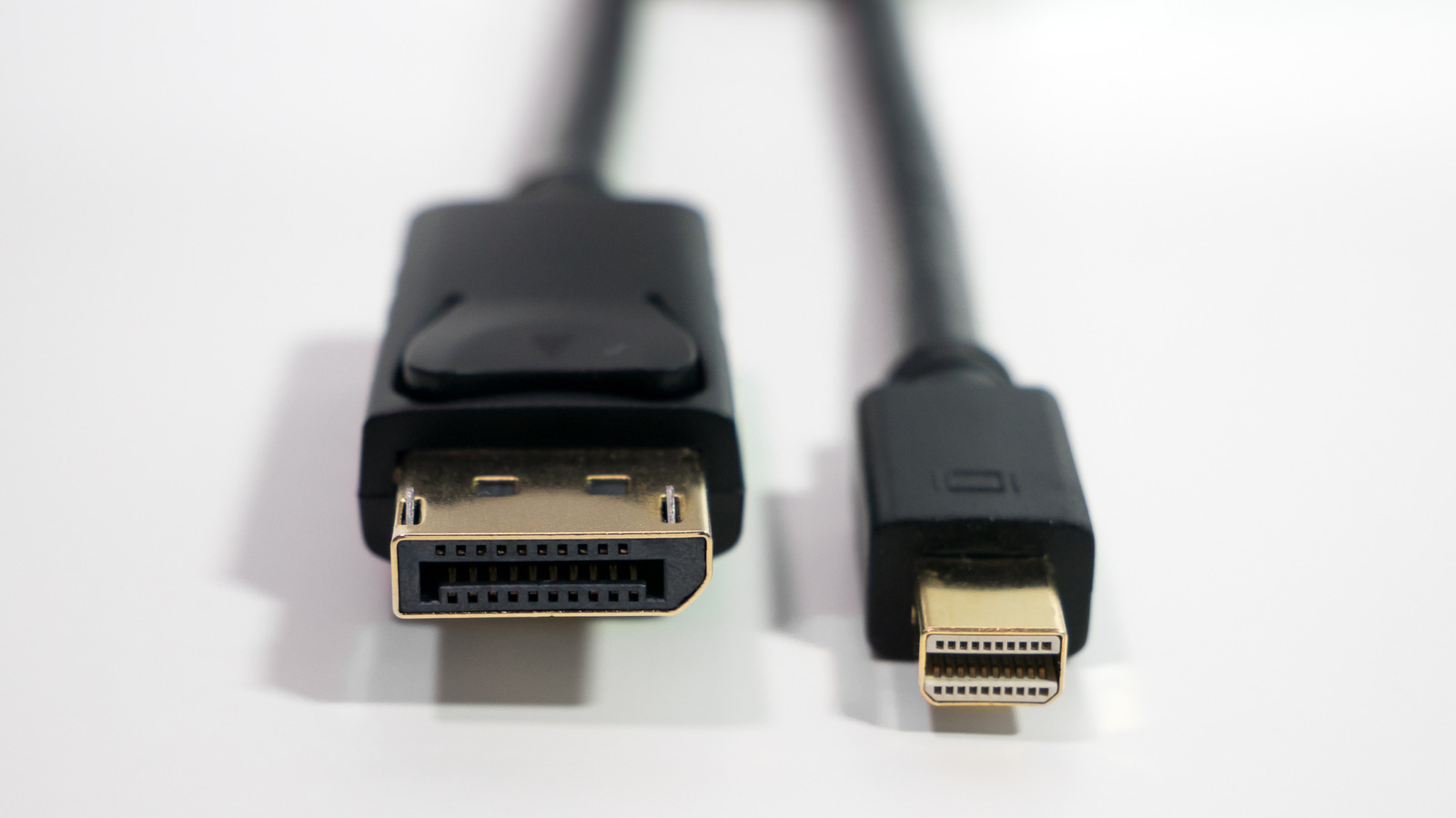
Hardware is the first place to look, because a bad physical connection can make the whole chain fail. The cable itself may be worn, bent, dusty, or simply cheap enough to cause flaky performance, especially if the ends have damaged pins or the body has been stressed. Swapping in a known good cable is often the fastest way to see whether the problem is the wire or something deeper.
Ports deserve just as much attention. A DisplayPort plug that feels loose or has trouble seating fully can interrupt the signal, and dust or debris can quietly get in the way of a solid connection. Powering down before cleaning the port, then using gentle tools like compressed air or a soft brush, can help clear out the junk without making things worse.
Adapters can also muddy the waters. A DisplayPort to HDMI adapter, or any similar converter, may work one day and fail the next if it is low quality, broken, or not fully compatible with the monitor and source device. When an adapter sits in the middle of the setup, it becomes one more weak link that can block the handshake between devices.
If the hardware looks fine, software is the next likely suspect. A quick restart of both the monitor and computer can sometimes reset whatever is hanging up the connection. It sounds basic, but plenty of display headaches are just temporary glitches that clear out once both devices get a fresh start.
Input selection matters too. A monitor with multiple sources will not always guess correctly, so the screen may be waiting on the wrong input while the real signal is arriving elsewhere. Checking the display menu to confirm the correct source can save a lot of unnecessary panic, especially when a laptop, console, and media player are all part of the same setup.
Driver problems can create their own chaos. Some monitors need extra drivers to work properly, while graphics card drivers may be outdated, corrupted, or simply incompatible with a recent change. Updating through the GPU maker’s software or official site is usually the cleanest move, but if the trouble started right after an update, rolling back to an older version can sometimes bring everything back in line.
When the basics do not solve it, manufacturer support becomes the sensible next step. Documentation, official setup guides, and warranty service can matter more than trial and error once the obvious fixes are exhausted. A monitor that still refuses to detect DisplayPort after all that often needs a closer look from the people who built it.
