
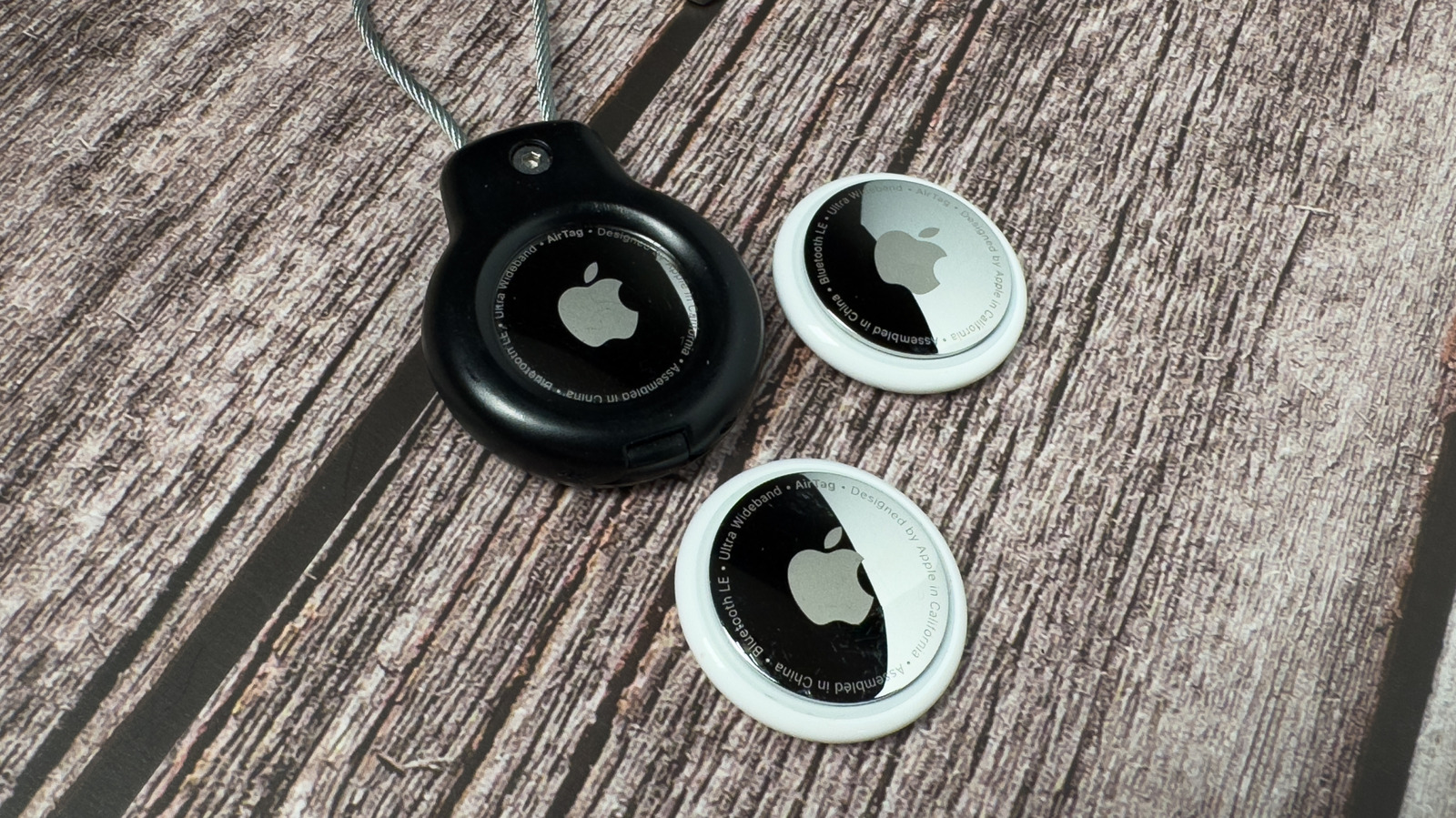
Before you add another AirTag, take a quick audit: account limits, how Find My counts devices and items, whether your AirPods or third-party trackers are already on the list, and practical ways to keep control so you do not hit a surprise ceiling. This piece walks through what matters when you’re juggling multiple trackers and devices tied to one Apple ID. The aim is simple: understand the constraints so you can add what you need without losing track of anything important.
Apple’s Find My system treats trackers and compatible accessories as part of a single ecosystem, and that means there’s a practical limit to how many items can be associated with one account. That limit is there to keep the service reliable and to prevent abuse, so whether you own lots of AirTags, an army of third-party Find My devices, or multiple Apple audio gadgets, they all influence how many new items you can register. It pays to know what’s already paired before you try to toss another tracker onto the pile.
AirPods and other Apple accessories show up in the Find My app and can use the same network that AirTags rely on. That means those earbuds are not invisible when Apple looks at what’s connected to your Apple ID. Even though AirPods behave slightly differently in the app, they still factor into the practical count of tracked items you manage, so do not assume they are irrelevant when you’re nearing a cap.
Third-party trackers that advertise compatibility with Find My are part of the same picture. Vendors that support Apple’s Find My network let their hardware appear in the app just like an AirTag, which is great for interoperability but also adds to what the account needs to keep track of. If you use a mix of Apple-branded and third-party devices, treat them all the same when planning how many new trackers you can realistically add.
If you find yourself blocked from adding a new AirTag, a quick cleanup often fixes it. Remove devices you no longer carry, unpair lost items you reclaimed or reset, and tidy up duplicates and old loaned trackers. Renaming items and grouping them mentally or physically can stop accidental redundancy, and occasionally signing out of stale devices or family-shared accounts frees up space without having to buy another product or set up a second account.
Security and anti-stalking features matter as much as limits. Apple built in alerts for unknown trackers and audible alerts for nearby AirTags that are separated from their owner, so keep your iPhone updated and pay attention to those warnings. If you discover an unknown tracker, follow the safety prompts in Find My to disable and remove it; staying proactive protects privacy and keeps your item list meaningful instead of cluttered with mystery entries.
For heavy users who track a lot of gear—think photographers, fleet managers, or families who share multiple devices—the simplest route may be better organization rather than more hardware. Use different Apple IDs for different projects when separation actually helps, keep a clear inventory outside the app, and choose which items truly need persistent tracking. That way you avoid juggling limits and keep the device ecosystem working the way you expect.
At the end of the day, adding more AirTags doesn’t have to be a headache if you treat Find My like a tool that needs occasional housekeeping. Audit the list, retire what you do not use, and be mindful that AirPods and Find My-enabled third-party accessories are part of the same accounting. Do a quick sweep now and your next tracker will pair without drama.
