
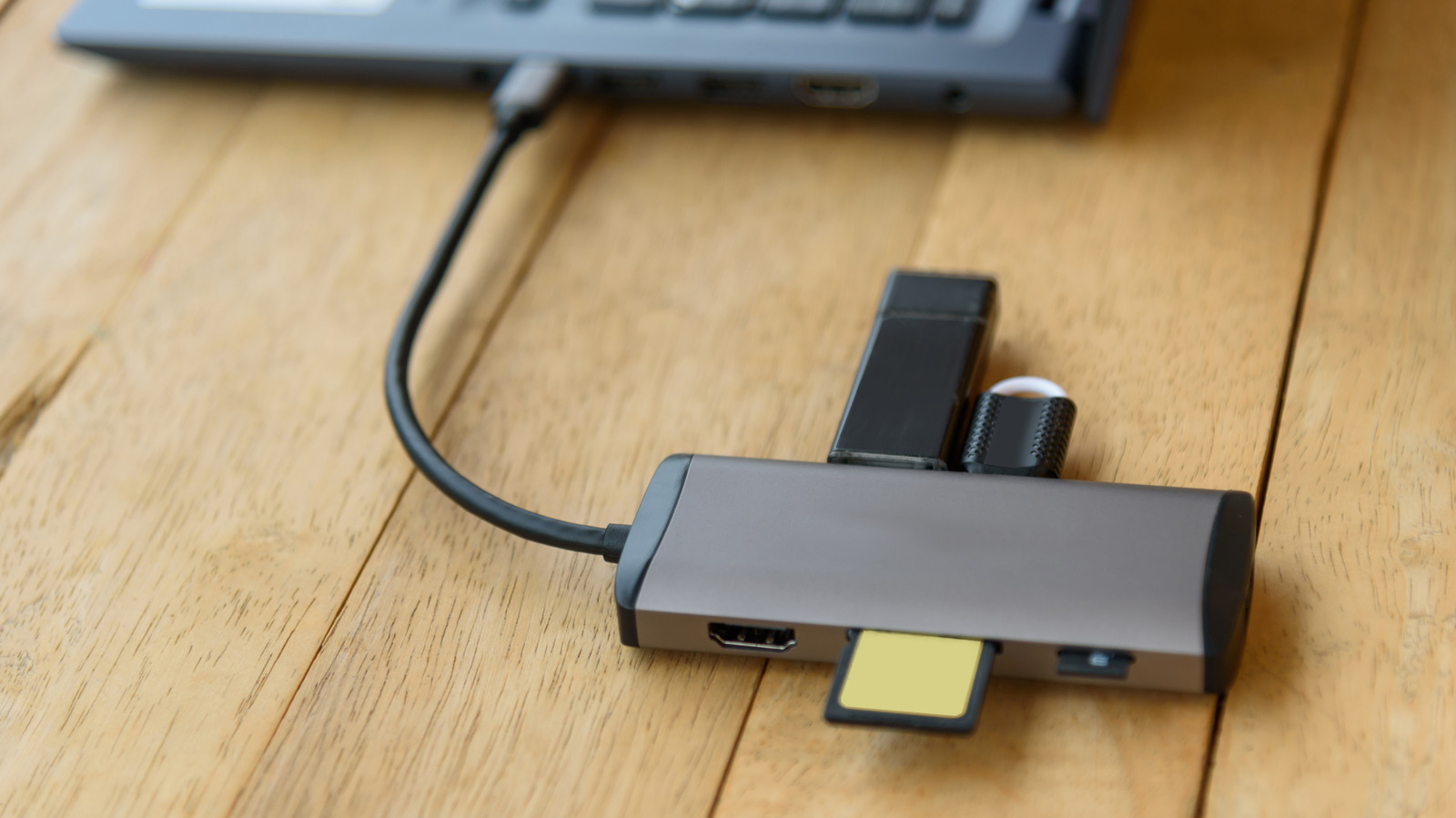
USB hubs make life easier by adding ports, but not every gadget should ride behind one. This piece explains which devices can cause trouble when connected through hubs, why that happens, and practical steps to keep your gear working cleanly. You will learn how power, drivers, and protocol differences affect reliability and what to plug straight into your computer instead of into a hub.
Start with the basics: not all hubs are created equal. There are bus-powered hubs that draw energy from your computer, and self-powered hubs that use their own adapter to supply current. If you plug several hungry devices into a bus-powered hub, something will give, and often it is performance or data integrity.
External hard drives and SSDs are a common source of trouble when used on cheap or unpowered hubs. Spinning drives need stable power spikes when they spin up, and interrupted power can lead to read errors or corrupted files. Even with SSDs, an unstable USB connection may cause transfers to fail or drop mid-copy.
Laptops and other gadgets that rely on USB Power Delivery are another category to avoid through hubs. Many hubs do not support the full power negotiation that a laptop expects, so charging will be slow or won’t work at all. When you need reliable charging or full-power operation, plug the charger directly into the device or use a hub explicitly rated for PD passthrough.
Audio interfaces, microphones, and pro-grade USB equipment often misbehave when they share a hub with other noisy devices. These peripherals depend on low-latency, stable connections, and a hub that interrupts traffic or injects jitter can cause pops, dropouts, or driver hiccups. Musicians and podcasters should favor direct ports or high-quality, powered hubs designed for audio work.
Boot drives, installation media, and any device you expect the computer’s firmware to recognize during startup are best connected directly. Some motherboards and BIOS setups have limited hub support during early boot, which means an OS installer or recovery tool might not see your USB stick. If you are installing or troubleshooting, avoid hubs to reduce surprises.
Security dongles and specialized USB sticks that use unique drivers can be flaky through hubs. They sometimes rely on precise timing and direct USB host negotiation; placing them behind an intermediate hub can cause recognition failures or repeated re-enumeration. For devices that give you a “missing driver” or behave inconsistently, test them on a direct port first.
Networking sticks, like USB Wi-Fi adapters and some Bluetooth dongles, can suffer signal and stability problems when plugged into crowded hubs. Interference and power constraints can reduce throughput or cause frequent disconnects. Use a direct port or a powered, well-shielded hub if you must extend their reach away from electromagnetic noise.
Cheap multi-port hubs and long chains of daisy-chained hubs multiply risk. Each extra connector and cable adds resistance, latency, and more points of failure. Invest in a single, solid hub with its own power supply and reputable chipset rather than stacking several low-cost units together.
Practical fixes are straightforward: identify whether your hub is bus or self-powered, check device power requirements, and put mission-critical or power-hungry gear straight into the host when possible. Keep cables short and well-made, update hub and device drivers, and don’t expect a low-cost hub to handle professional audio, heavy storage, or laptop charging. With a little attention you can keep all your USB devices happy without mystery problems or lost data.
